

Project Tags
Label projects with color-coded tags to organize and filter your projects list.
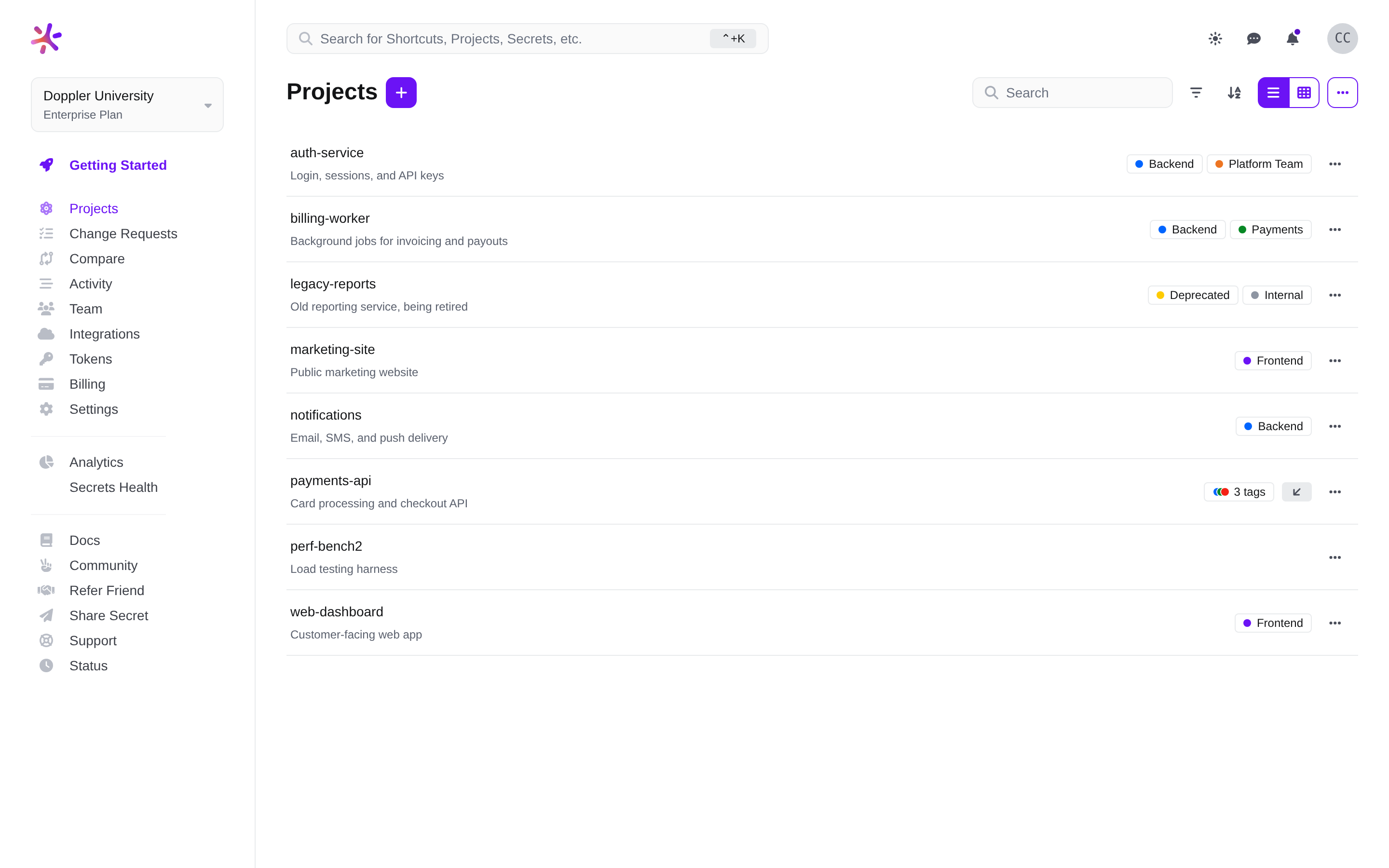
Tags are color-coded labels you assign to projects so you can organize your projects list and find related projects quickly. For example, you might tag projects by team (Platform Team), by layer (Backend, Frontend), or by compliance scope (PCI).
Tags are defined once for the whole workplace and can then be assigned to any project. Each project can have several tags, and the same tag can be assigned to many projects.
Tags are organizational labels only. They don't grant or restrict access to projects, and assigning a tag to a project doesn't change who can see it. To control access, use Project Permissions.
Availability
Project tags are available on every plan. A workplace can have up to 100 tags, and each project can have up to 100 tags assigned. Reach out to [email protected] to request raising these limits or see Platform Limits for more details.
Tag Properties
Every tag has three properties:
| Property | Description |
|---|---|
| Name | The label shown on projects. Must be between 1 and 32 characters and can contain any characters. Names are unique within a workplace regardless of capitalization, so you can't have both Backend and backend. |
| Slug | The identifier used to refer to the tag in the API. Can contain lowercase letters, numbers, and underscores, up to 32 characters. When you create a tag, Doppler generates the slug from the name (for example, Platform Team becomes platform_team), but you can enter your own. A tag's slug can't be changed after the tag is created. |
| Color | One of eight colors: Gray, Purple, Blue, Green, Yellow, Orange, Red, or Pink. New tags are Gray by default. |
Creating Tags
You can create tags from workplace Settings or directly from the projects list while you're assigning tags. Creating tags requires the Create Tags workplace permission, which Owners and Admins have by default.
From Settings
- Click Settings in the left navigation bar, then scroll to the Tags Management section.
- Click the + button. If your workplace doesn't have any tags yet, click Create a Tag instead.
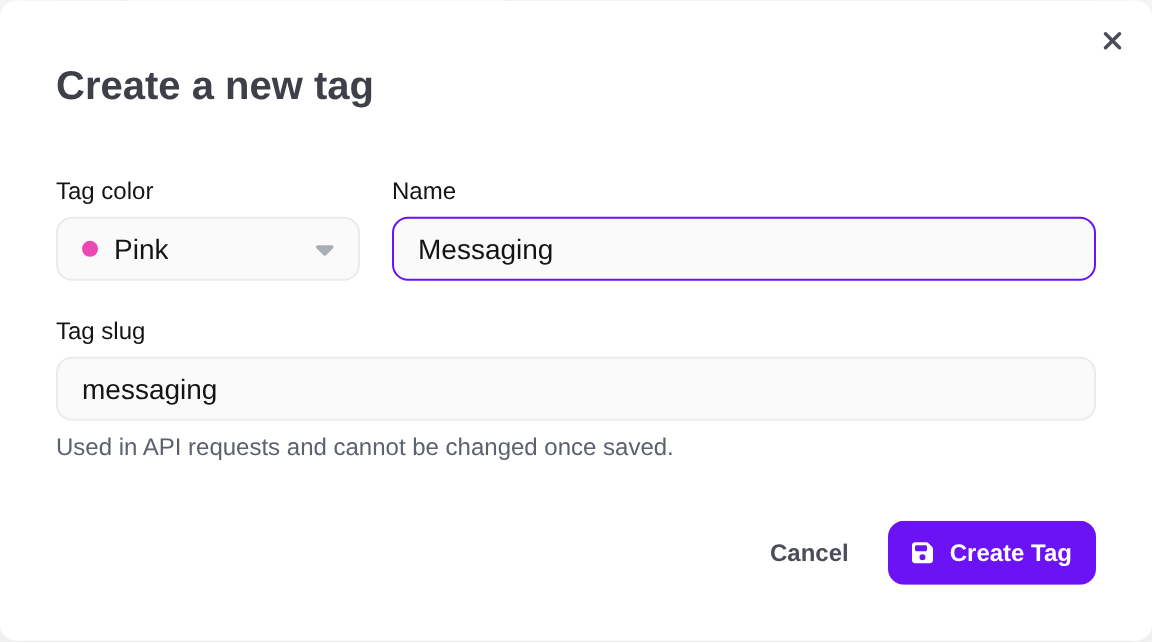
- Choose a Tag color, enter a Name, and optionally change the Tag slug.
- Click Create Tag.
From the Projects List
You can also create a tag and assign it to a project in one step. This requires both the Create Tags workplace permission and the Manage Tags permission on the project.
- Open the tags menu for a project.
- Type the name of the new tag in the search box, then click Create "<name>".
- Pick a color for the tag.

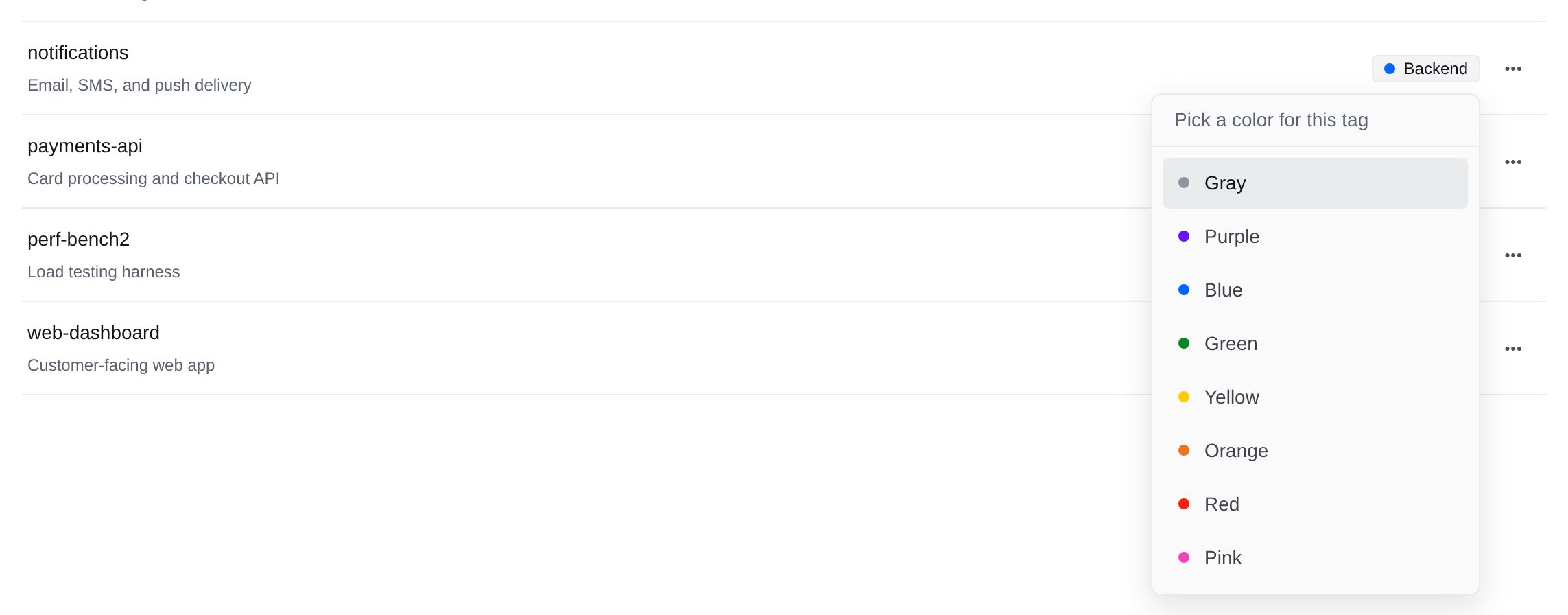
Doppler creates the tag with a slug generated from its name and assigns it to the project. The Create option is unavailable if a tag with that name already exists, regardless of capitalization.
Assigning Tags to Projects
Assign tags to a project from the Projects page:
-
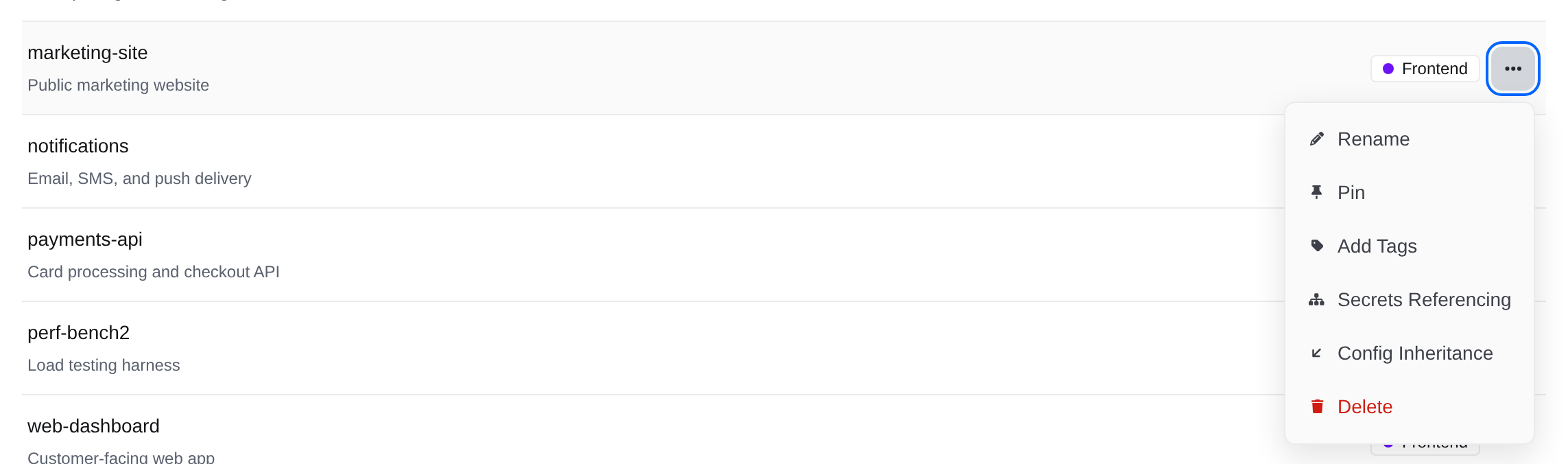
Click the project's options menu (⋯), then click Add Tags. If the project already has tags, you can click its tags instead.
-
In the tags menu, select the checkbox next to each tag you want to assign. Use the search box to find a tag by name.
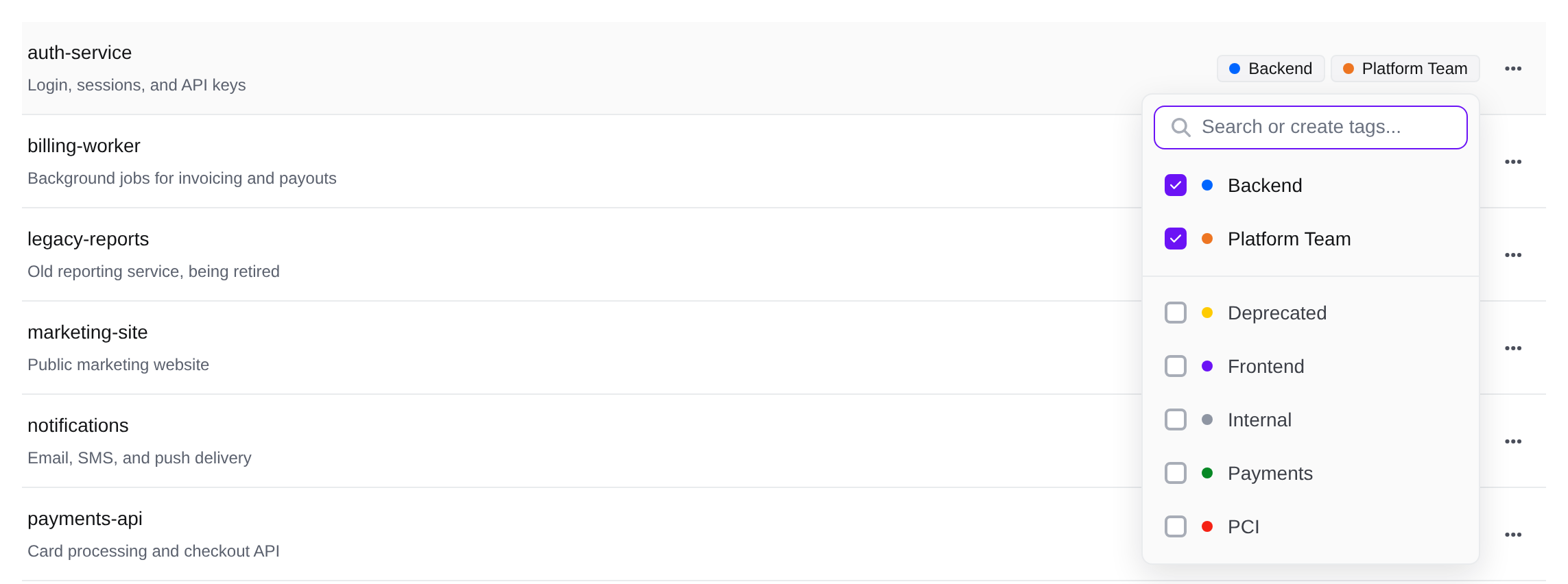
Changes are saved immediately. To remove a tag from a project, clear its checkbox. Assigned tags are listed at the top of the menu.
Assigning and removing tags requires the Manage Tags permission on the project, which the project Admin role has by default. Users without it can still see a project's tags and click them to view the full list, but can't change them.
Hover over an assigned tag in the tags menu to open its submenu, which has these options:
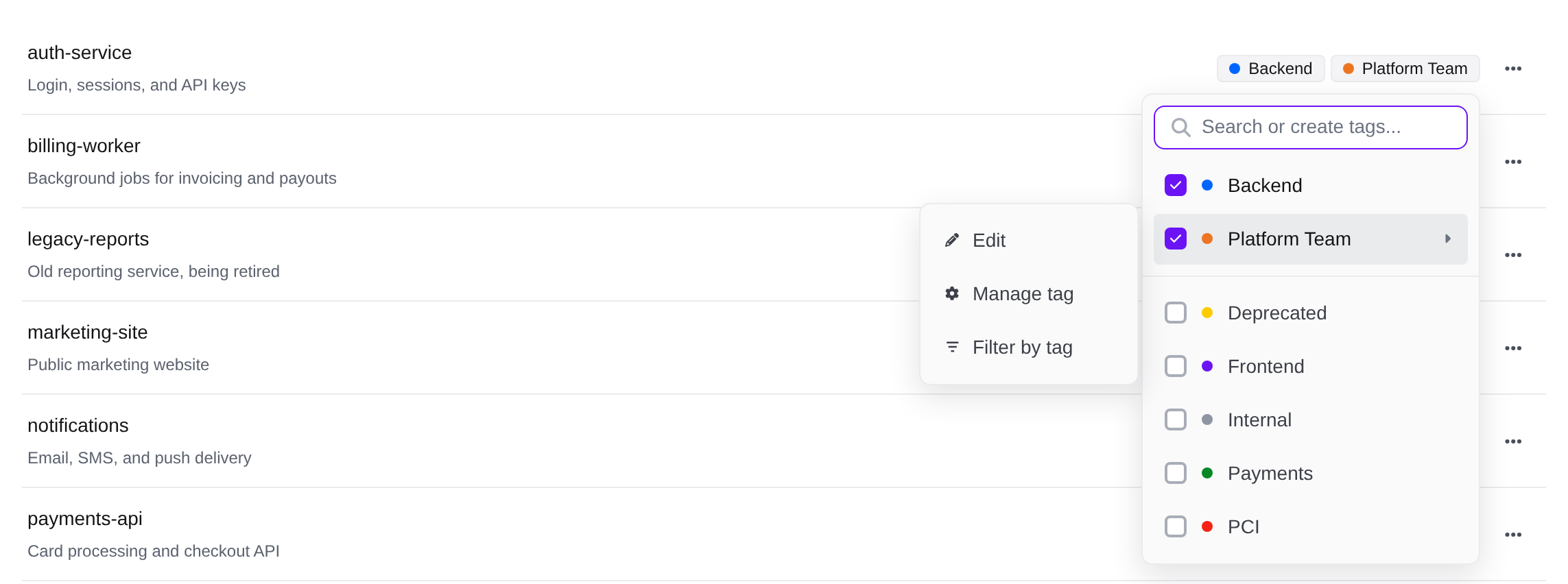
- Edit: Change the tag's name or color. Requires the Update Tags workplace permission.
- Manage tag: Open the Tags Management section of workplace Settings.
- Filter by tag: Filter the projects list to projects that have this tag.
Viewing Tags on the Projects List
Each project in the Projects page shows its tags next to its name. A project with one or two tags shows each tag by name. A project with three or more tags shows a single group with a dot for each tag color. Click on the grouped icons to see every tag on the project.
Filtering Projects by Tag
To show only the projects that have certain tags:
-
On the Projects page, click the Filter by tags button.
-
Select one or more tags.

When you select more than one tag, the list only shows projects that have all of the selected tags. The selected tags appear above the list. Remove a tag from the filter by dismissing it, or click Clear All to remove every tag filter.

The Filter by tags button only appears once your workplace has at least one tag. Tag filters aren't saved, so they reset when you leave the page.
Managing Tags
The Tags Management section of workplace Settings lists every tag in the workplace along with the projects it's assigned to. Only projects you have access to are listed. Use the Search box to find a tag by name.
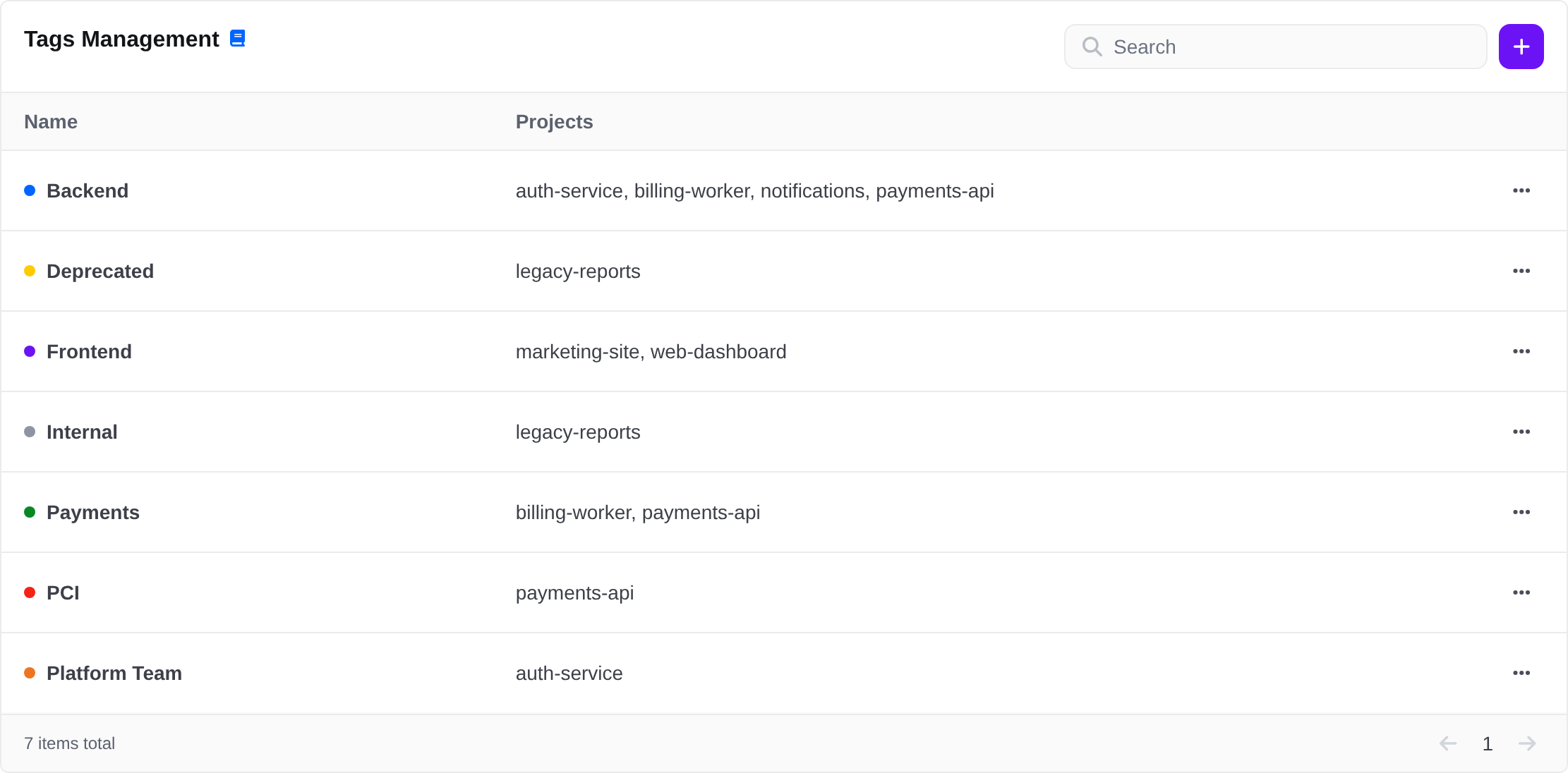
Editing a Tag
Click the tag's menu (⋯), then click Edit. You can change the tag's name and color, but not its slug. Click Save to apply the change to every project the tag is assigned to.
Editing tags requires the Update Tags workplace permission.
Deleting a Tag
A tag can only be deleted when it isn't assigned to any projects. First remove the tag from each project it's assigned to, then click the tag's menu (⋯), click Delete, and confirm. Deleting a tag can't be undone, but you can create a new tag with the same name afterward.
Deleting tags requires the Delete Tags workplace permission.
When a project is deleted, its tag assignments are removed automatically.
Permissions
| Permission | Level | API Slug | Allows the user to | Default roles |
|---|---|---|---|---|
| Create Tags | Workplace | tags_create | Create workplace tags | Owner, Admin |
| Update Tags | Workplace | tags_update | Rename tags and change their colors | Owner, Admin |
| Delete Tags | Workplace | tags_delete | Delete workplace tags | Owner, Admin |
| Manage Tags | Project | enclave_project_tags_manage | Assign tags to and remove tags from the project | Admin (project) |
Every member of the workplace can view its tags, and anyone who can view a project can see the tags assigned to it. You can grant these permissions to other users with Custom Roles.
Using the API
You can manage tags and tag assignments with the Doppler API:
| Action | Endpoint |
|---|---|
| List tags | GET /v3/workplace/tags |
| Create a tag | POST /v3/workplace/tags |
| Retrieve a tag | GET /v3/workplace/tags/tag/{tag} |
| Update a tag | PATCH /v3/workplace/tags/tag/{tag} |
| Delete a tag | DELETE /v3/workplace/tags/tag/{tag} |
| List a project's tags | GET /v3/projects/project/tags |
| Assign a tag to a project | POST /v3/projects/project/tags |
| Remove a tag from a project | DELETE /v3/projects/project/tags/tag/{tag} |
| List projects with tags | GET /v3/projects?tags=... |
Tags are always referenced by slug. For example, to create a tag and assign it to the payments-api project:
curl --request POST \
  --url https://api.doppler.com/v3/workplace/tags \
  --header "Authorization: Bearer $DOPPLER_TOKEN" \
  --header "Content-Type: application/json" \
  --data '{"name": "PCI", "color": "red"}'

curl --request POST \
  --url "https://api.doppler.com/v3/projects/project/tags?project=payments-api" \
  --header "Authorization: Bearer $DOPPLER_TOKEN" \
  --header "Content-Type: application/json" \
  --data '{"tag": "pci"}'
To list only projects that have every one of several tags, pass their slugs to the List Projects endpoint as a comma-separated list:
curl --url "https://api.doppler.com/v3/projects?tags=backend,pci" \
  --header "Authorization: Bearer $DOPPLER_TOKEN"
Activity Logs
Creating, renaming, and deleting tags, as well as assigning and removing them from projects, are recorded in your workplace's Activity Logs. Changing a tag's color isn't recorded. See the Activity Log Event Schema for the event types and their metadata.
Updated about 12 hours ago