

AWS SQS
Learn how to forward Activity Logs to an Amazon SQS queue
This guide will show you how to send workplace Activity Logs to an Amazon SQS queue. Doppler delivers logs by assuming an IAM role you create, so there are no long-lived AWS access keys to manage or rotate.
Requires an upgraded subscriptionThis feature is exclusive to our Enterprise Plan. Book a demo to see it in action.
Prerequisites
- AWS Console Access
- AWS IAM access
- Ability to create IAM roles and Policies
- An Amazon SQS queue (Standard type)
- Doppler Enterprise plan
Overview
When a new Activity Log entry is generated in your Doppler workplace, Doppler assumes an IAM role in your AWS account and sends the log as a message to the SQS queue you specify. From there, you can fan the messages out to any downstream consumer — Lambda, a self-hosted log processor, an EventBridge pipe, or your SIEM of choice.
Create an SQS Queue
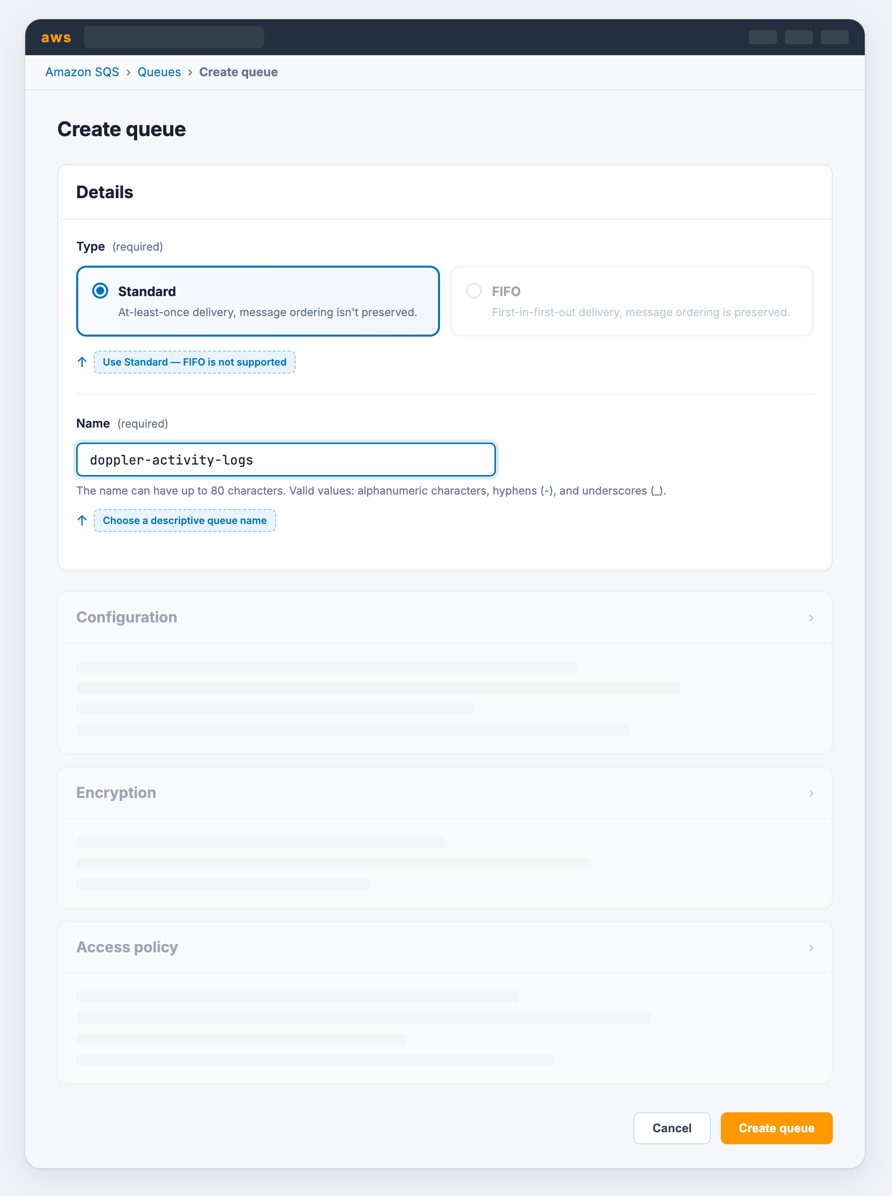
If you don't already have an SQS queue to use, create one:
- Navigate to the SQS console
- Click Create queue
- Select Standard queue type
Why Standard instead of FIFO?Activity Log messages are independent events and do not require strict ordering. Standard queues offer
higher throughput and lower cost. FIFO queues are not currently supported.
- Give your queue a name (e.g.,
doppler-activity-logs) - Configure Encryption, Access policy, Dead-letter queue, and other settings as appropriate for your organization. The defaults are sufficient to get started.
- Click Create queue
- Copy the Queue URL from the queue details page — you'll need it when configuring Doppler
KMS-encrypted queuesIf you choose AWS KMS for encryption with a customer-managed key (rather than the default
SSE-SQSor an AWS-managed key), you must also grant the Doppler rolekms:Decryptandkms:GenerateDataKeyon the key and update the key's policy to allow the role to use it. See the Custom KMS Key policy tab below.
Authorization
Doppler uses an IAM role you provide to assume into your account and send messages to your SQS queue.
Policy
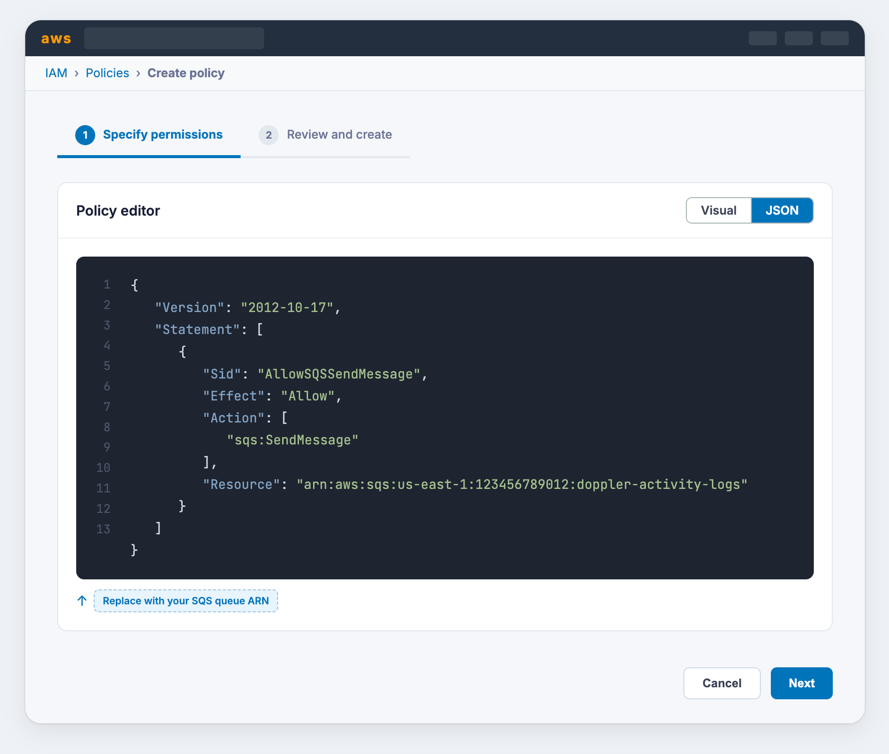
- Navigate to the Create New Policy section in the AWS IAM console
- Switch to the JSON tab
- Enter the appropriate policy from the options below, replacing the
Resourcevalue with the ARN of your SQS queue. If the queue uses a custom KMS key for server-side encryption, be sure to use the Custom KMS Key policy.
{
  "Version": "2012-10-17",
  "Statement": [
    {
      "Sid": "AllowSQSSendMessage",
      "Effect": "Allow",
      "Action": ["sqs:SendMessage"],
      "Resource": "<your SQS queue ARN>"
    }
  ]
}
{
"Version": "2012-10-17",
"Statement": [
{
"Sid": "AllowSQSSendMessage",
"Effect": "Allow",
"Action": ["sqs:SendMessage"],
"Resource": "<your SQS queue ARN>"
},
{
"Sid": "AllowKMSAccess",
"Effect": "Allow",
"Action": ["kms:Decrypt", "kms:GenerateDataKey"],
"Resource": "<your KMS key ARN>"
}
]
}- Optionally provide tags
- Name your policy and hit create
Role
-
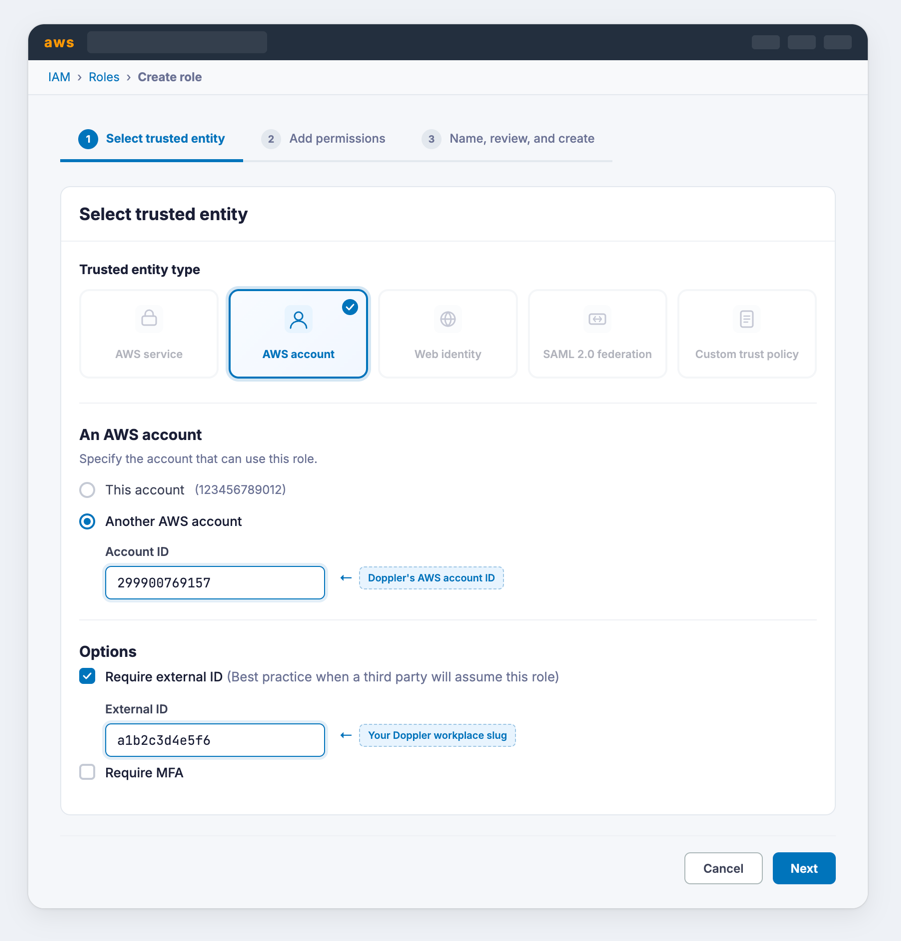
Navigate to the create role section of the AWS IAM console
-
Select AWS account for the Trusted entity type
-
Select Another AWS account under An AWS account
-
Enter 299900769157 for the Account ID. This is Doppler's account ID.
By default, AWS creates this trust relationship at the root level (i.e., using an ARN like
arn:aws:iam::299900769157:root), which grants permission to any user in Doppler's AWS account. Practically speaking, this is fine because this account is used specifically for production AWS integrations and is locked down securely. However, if you want to lock it down further, you can modify the ARN in the JSON definition toarn:aws:iam::299900769157:user/doppler-integration-operatorso it's restricted to the specific user being used for integration operations.
-
-
Under Options check Require external ID
- Enter your workplace slug for the External ID. You can obtain your workplace slug by visiting the Doppler dashboard. In the URL, grab the value after
/workplace/ - Leave require MFA unchecked
- Enter your workplace slug for the External ID. You can obtain your workplace slug by visiting the Doppler dashboard. In the URL, grab the value after
-
Attach the policy you created above.
-
Complete the role setup. When the role is created, click the link to it to view its details
-
Copy its ARN
Configuration
Browse to the Doppler dashboard and click Settings in the left navigation bar. Scroll down to the SIEM Services section, find the AWS SQS service and click Configure.
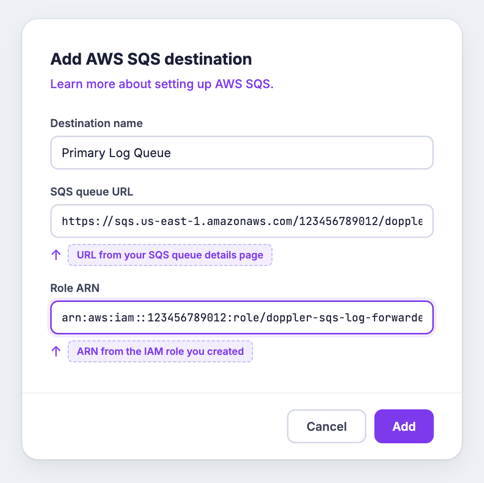
Click Add destination and fill in the following:
- Destination name — a label for this destination (e.g.
Primary Log Queue) - SQS Queue URL — the full URL of your SQS queue (e.g.,
https://sqs.us-east-1.amazonaws.com/123456789012/doppler-activity-logs) - Role ARN — the ARN of the IAM role you created above
Click Add. Doppler will send a test message to verify the connection. If the connection fails, see Troubleshooting below.
Nicely Done!Your workplace is configured to automatically forward activity logs to your SQS queue.
Troubleshooting
AccessDenied when Doppler attempts to assume the role
AccessDenied when Doppler attempts to assume the role- Confirm the trust policy on the role includes
arn:aws:iam::299900769157:root(orarn:aws:iam::299900769157:user/doppler-integration-operator) as a trusted principal. - Confirm the External ID on the role matches your workplace slug exactly.
AccessDenied on sqs:SendMessage
AccessDenied on sqs:SendMessage- Confirm the IAM policy attached to the role includes
sqs:SendMessagefor the correct queue ARN. - If your queue is encrypted with a customer-managed KMS key, confirm the role has
kms:Decryptandkms:GenerateDataKeyon the key and the key policy allows the role to use it.
Messages are being sent but not appearing in your consumer
- Confirm your consumer is polling the same queue URL and region that you configured in Doppler.
- Check the queue's Monitoring tab in the AWS console to confirm
NumberOfMessagesSentis incrementing.
Updated 6 months ago