---
updatedAt: 2025-09-02T21:35:43.000Z
---
Fetch the complete documentation index at: https://docs.doppler.com/llms.txt. Use this file to discover all available pages before exploring further. Append .md to any documentation page URL to get its markdown version.
# GitHub Actions
Bring new features and workflows for managing repository secrets with our GitHub integration.
## Prerequisites
* You have [created a project](https://docs.doppler.com/docs/create-project) in Doppler
* You have a [GitHub](https://github.com) account with repository permissions for configuring GitHub Secrets, Actions, Codespaces, and Dependabot (and optionally organization permissions for configuring GitHub Organization Secrets).
## GitHub Environment
As GitHub doesn't fit into either Development, Staging, or Production, we'll create a dedicated **GitHub** environment.
Head to the Project page and click **Options** > **Create Environment**, then name it GitHub and optionally change the order to have it placed after Development.
## Authorization
The next step is authorizing the [Doppler GitHub Application](https://github.com/apps/doppler) to provide access for syncing secrets from Doppler to a chosen repository.
To authorize, click **Integrations** from the Projects menu, then select **GitHub**:
Choose the GitHub account or organization to authorize:
Select which repositories Doppler will have secrets access to:
You'll then be redirected back to Doppler.
## Sync Creation
You can now set up your integration using the provided dropdowns.
* For the 'Feature' you can select Actions, Codespaces, Dependabot or Copilot Agents. Choose the appropriate option here.
* If your GitHub integration connection is to a GitHub Organization, then you'll be presented with a 'Sync Target' option that allows you to select Repository or Organization.
* Next, you'll be presented with one of two options depending upon if your GitHub integration connection is to a GitHub Organization:
* Non-Organization Account: You'll be presented with a Repository dropdown where you will select one of the repositories the Doppler app can access.
* Organization Account:
* For the 'Repository' sync target you will select one of the repositories the Doppler app can access.
* For the 'Organization' sync target, you can select either Private Repositories or All Repositories for the scope of the sync.
* Finally, select the Config you wish to sync with your GitHub environment.
Click **Set Up Integration**, and once complete, Doppler will have synced all secrets in the chosen config, as well as creating three `DOPPLER` specific secrets:
Now every time you add, update or remove a secret **in Doppler**, that change will be instantly reflected in the GitHub secrets for the chosen feature and repository.
> 📘
>
> Doppler cannot import existing secrets or sync changes to secrets made in GitHub as the secret values are hidden. All secret changes should be made in Doppler to avoid possible confusion.
## Multiple Environments
If your GitHub repository is public, then you can take advantage of [Environments](https://docs.github.com/en/actions/deployment/targeting-different-environments/using-environments-for-deployment). If you have any created, you can choose which environment to use when setting up the GitHub integration.
When an environment is selected, your Doppler secrets will be synced to the Environment secrets for the chosen environment rather than the Repository secrets. To sync multiple configs to separate environments, just create additional GitHub Action integration syncs and specify a different Environment during setup.
## Organization Secrets
If you connected Doppler to a GitHub Organization, then you'll have the option to sync your secrets to your GitHub Organization Secrets. When setting up the sync, you'll find a **Sync Target** option that lets you choose between a Repository and the Organization. Choose **Organization** and then select the **Secret Scope** you'd like to use.
**All Repositories** will make any secrets you sync here accessible to both public and private repos in your organization. **Private Repositories** will only make the secrets accessible to private repos in your organization. After selecting a scope, choose which config you want to have synced over and then click **Set Up Integration**.
## Variable Syncing
Checking the **Sync unmasked secrets as variables** option will cause any secrets in the target config that have the unmasked visibility type to be synced to GitHub Actions as variables rather than secrets. This can be useful because secrets are automatically masked in GitHub Actions output, so things you may want visible like the port or a URL might be masked. Using this option will ensure they remain visible. All `DOPPLER_*` secrets will be synced as variables as well.
## Importing Secrets from GitHub Actions
GitHub's API doesn't provide a way to fetch the actual secret values for GitHub Action secrets, so our integration syncs don't provide an import option. If you have existing secrets in GitHub that you would like to import into Doppler, the only way to do that is via a GitHub Action workflow like this:
```yaml
name: Export Secrets to Doppler
on:
workflow_dispatch:
inputs:
environment:
description: 'Deployment Environment for this job.'
required: true
type: environment
doppler_token:
description: 'Doppler Service Token'
required: false
type: string
doppler_target_project:
description: 'Doppler Target Project'
required: false
type: string
doppler_target_config:
description: 'Doppler Target Config'
required: false
type: string
jobs:
export-to-doppler:
runs-on: ubuntu-latest
environment: ${{ inputs.environment }}
steps:
- name: Install Doppler CLI
uses: dopplerhq/cli-action@v3
- name: Upload Secrets to Doppler
run: |
doppler secrets upload \
--project "$DOPPLER_TARGET_PROJECT" \
--config "$DOPPLER_TARGET_CONFIG" \
--silent <(echo "$GITHUB_SECRETS" | jq 'del(.github_token, .DOPPLER_TOKEN, .DOPPLER_TARGET_PROJECT, .DOPPLER_TARGET_CONFIG) | with_entries( .key |= ascii_upcase )')
shell: bash
env:
DOPPLER_TOKEN: ${{ inputs.doppler_token || secrets.DOPPLER_TOKEN }}
DOPPLER_TARGET_PROJECT: ${{ inputs.doppler_target_project || secrets.DOPPLER_TARGET_PROJECT }}
DOPPLER_TARGET_CONFIG: ${{ inputs.doppler_target_config || secrets.DOPPLER_TARGET_CONFIG_DEV }}
GITHUB_SECRETS: ${{ toJson(secrets) }}
```
This workflow uses the `workflow_dispatch` trigger, so it will only run when manually triggered to do so. You can either provide the `DOPPLER_TOKEN`, `DOPPLER_TARGET_PROJECT`, and `DOPPLER_TARGET_CONFIG` secrets when running the workflow, or manually define them on the repository. When running the workflow, you should see a dropdown like this in the GitHub UI:
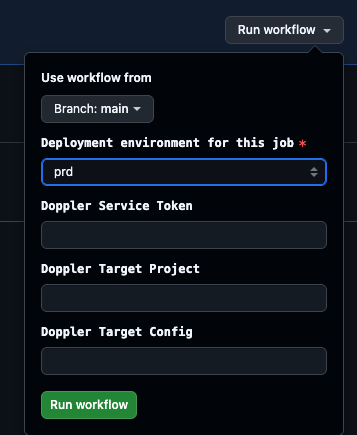
* `DOPPLER_TARGET_PROJECT` - The Doppler project you want to export your secrets to.
* `DOPPLER_TARGET_CONFIG` - The Doppler config you want to export your secrets to.
* `DOPPLER_TOKEN` - A Doppler access token with the permissions required to write secrets to the previously defined Doppler project and config.
The workflow will then take all the GitHub Action secrets for the repository, remove the `github_token` (which GitHub automatically injects), `DOPPLER_TOKEN`, `DOPPLER_TARGET_PROJECT` and `DOPPLER_TARGET_CONFIG` secrets, convert any remaining secret names to uppercase (which is required for secrets in Doppler) and then upload them to the specified config.
> 👍 Amazing Work!
>
> The Doppler GitHub integration will now instantly sync your secret changes to GitHub.